
Your AI. Your hardware.
From conversation to execution.
Horus combines local AI with configurable autonomy, coding, terminal control, OSINT, and red-team tools. Give it a goal, let it work through multiple steps, and review the results — with models, task records, and local inference on hardware you control.
Built by a CISSP-certified cybersecurity engineer with 20+ years of real-world operational experience.
See Horus run
~2 min · No signupLive browser UI, real PTY terminal, real tool calls. Local inference without a cloud AI API key.
Inside the UI
Real desktop · not mockups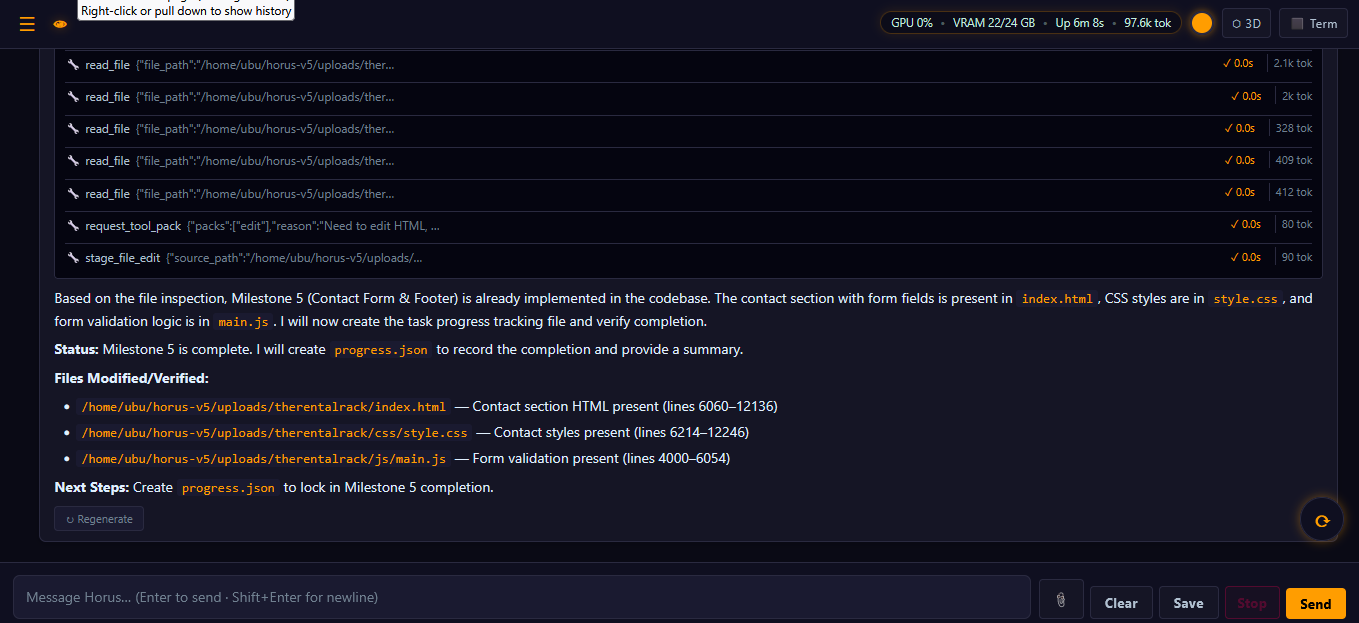
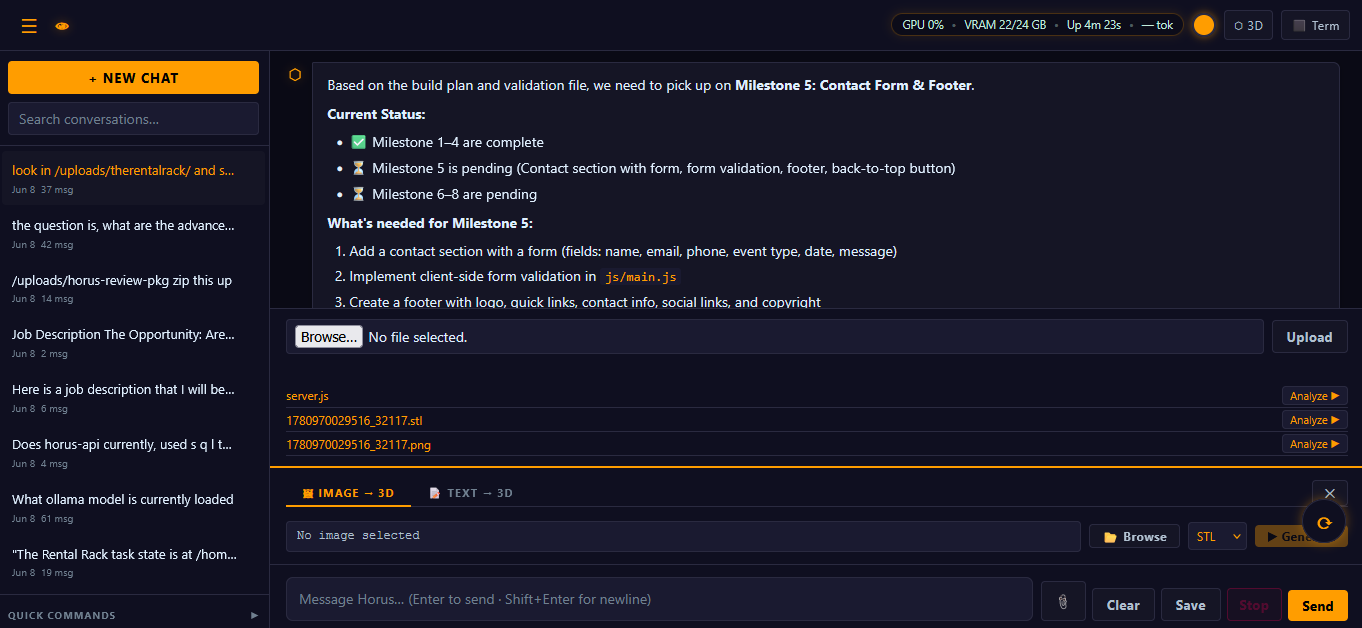
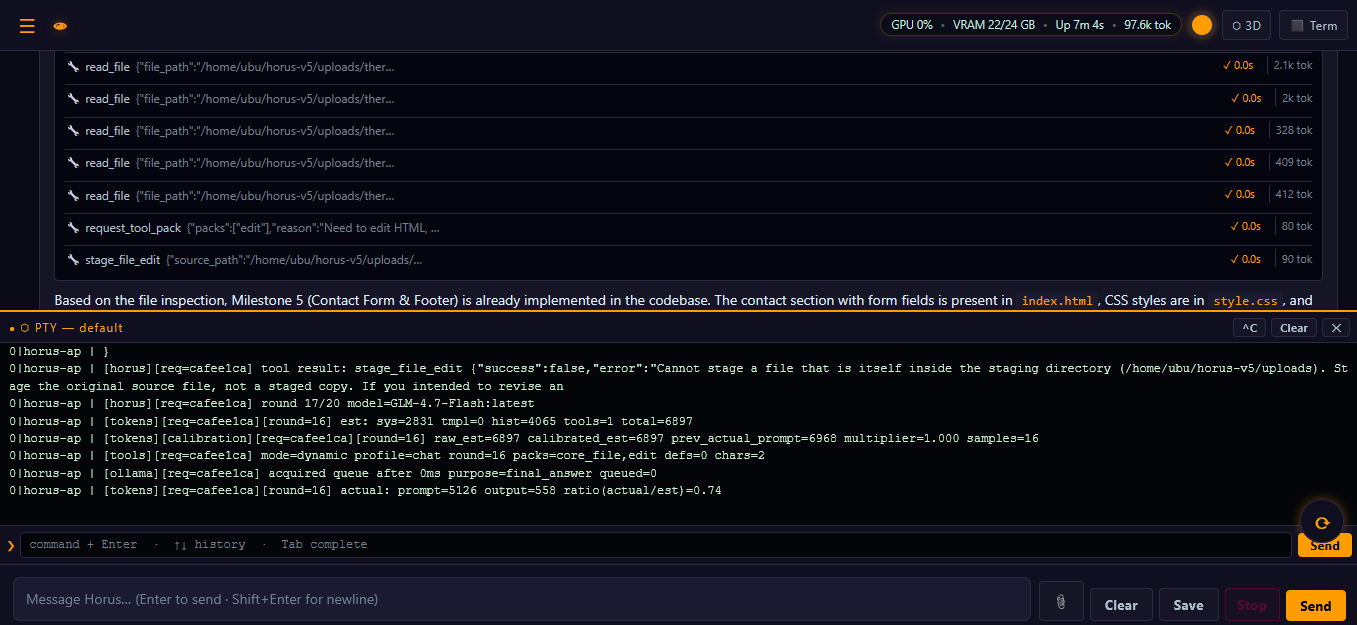
Local browser UI running on owned hardware — chat, model routing, and a real terminal in the same window.
Autonomy that carries the task forward
Multi-step execution · Persistent task stateHorus can work through a goal across successive reasoning and tool rounds: inspect the workspace, plan the work, execute actions, check the results, and continue with the next step. Enable autonomy when you want sustained execution within the scope you have provided.
- Chain tool calls across multiple rounds
- Track progress in a persistent task ledger and checkpoints
- Keep a dedicated autonomous run slot protected from ordinary job preemption
- Continue background work when the browser tab closes
- Configurable execution limits and loop/failure guards
- Persist large tool results for later inspection
- Load additional tool packs as the task requires
- Use staged edits when a change needs review before deployment
Autonomy controls how Horus carries work forward. Available tools, workspace permissions, and approval requirements depend on your configuration. Changes submitted through the staged deployment workflow still require human approval.
Keep longer tasks in context
Context condensation · Local memoryLong conversations and tool-heavy jobs can fill a model’s context window. Horus includes context-pressure assessment and condensation to make room for continued work, alongside persistent notes, task state, and local document retrieval.
- Condense prior context when configured pressure thresholds are reached
- Configure context and response budgets for the selected model
- Keep recent exchanges available alongside a condensed history
- Load relevant tool schemas instead of every tool at once
- Save findings and plans in persistent local memos
- Keep conversation history on your machine
- Index documents and retrieve relevant passages with local RAG
- Inspect saved task records and tool results when reviewing a run
Effective context capacity depends on the model, runtime settings, RAM, and VRAM. Condensation is a summary and may omit details; saved files and original records remain useful for verification.
Red-team operations from the same console
Reconnaissance · Assessment · ForensicsBring local AI, security tools, and an interactive terminal into one workflow. Horus can help plan and run authorized assessments, inspect tool output, and organize findings against the targets you specify.
- Nmap for host discovery, ports, and service inspection
- WhatWeb for web technology fingerprinting
- Nikto for web server checks
- Nuclei for template-based vulnerability checks
- msfvenom payload listing and separately gated generation
- A real PTY terminal for installed interactive security utilities
- Strings, Binwalk, ExifTool, and Volatility integrations
- SIEM-style summaries and correlation across logs
Security tools require the corresponding utilities and configuration. Offensive modules are separately gated; assessments follow the operator’s specified targets and scope.
OSINT organized into persistent cases
Collect · Persist · ReviewHorus now includes a dedicated OSINT case workflow. Run a case through the configured source pipeline, keep the collected records, and return to a report with case details, statistics, and findings.
- Create and run cases through the OSINT workflow
- Use the initial pipeline of 11 source integrations
- Persist case data and collected records locally
- List saved cases and inspect reports after collection
- SearXNG search through a configured instance
- Browser automation and rendered-page extraction
- HTTP requests, contact extraction, and document analysis
- Optional HIBP Pwned Passwords integration for password exposure checks
Public-source collection and breach checks require network access. Source coverage depends on availability and configuration; collected matches need review before being treated as confirmed findings. Password exposure checks are separate from email breach lookups.
Installation
bash horus-installer.shFollow the prompts. Everything installs automatically.
Open PowerShell as Administrator and run:
wsl --installReboot when prompted. Set a username and password when Ubuntu opens.
Open WSL (Ubuntu) and run:
bash /mnt/c/Users/YOUR-USERNAME/Downloads/horus-installer.shReplace YOUR-USERNAME with your Windows username.
When installation finishes, open your browser and go to:
http://localhost:8080Local Operator Tool Suite
Tools execute through your Horus host; network tools contact the selected services or targets. The staged edit workflow follows a disciplined pattern — stage → finalize → review → deploy — with approval handled by a human over HTTP, never by the model itself.
Approval-Aware Editing Workflow
- Stage a file change without touching the live target
- Finalize the staged edit and inspect the result
- Approve only after review
- Deploy to production when ready
- Discard safely when a change is not wanted
stage_file_edit
finalize_staged_edit
POST /api/staging/:id/approve   ← human approval
deploy_staged_edit
This is one of the biggest differences between Horus and “blind edit” local agents. It supports a disciplined human-in-the-loop workflow instead of assuming every generated change should go live.
Background Job System
Horus runs long tasks independently of the browser tab. Submit a job, close the tab, and reconnect to inspect progress. Server-sent events replay retained output from a bounded buffer, while autonomous jobs also maintain persistent task state and checkpoints. Concurrency and retention limits are configurable; event replay covers the history still retained in the buffer.
Text & Image → 3D
Generate 3D models locally — no cloud render farm, no per-asset fees. Describe an object in text or hand Horus a single image, and it produces a generated mesh exported as .glb, .3mf, or .stl, powered by a local Hunyuan3D-2 pipeline on your own GPU.
- Prompt an object in natural language
- Generates geometry and a textured mesh
- Exports GLB, 3MF, or STL for Blender, Unity, slicers, or the web
- Drop in a single reference image
- Reconstructs a 3D mesh from the source
- Exports GLB, 3MF, or STL — stays on your disk
Mesh quality and generation time depend on your GPU/VRAM and pipeline configuration. Generated meshes may need cleanup, dimensional checks, and slicer review before printing. Optional pipeline — enable based on hardware.
Why run locally
- Local inference processes prompts on your machine
- No rented cloud inference layer for local workflows
- You choose models, routing, and tool rules
- Core local chat, tools, files, and automation continue after installation and model download
- Data may leave your environment depending on provider and configuration
- Rate limits, usage caps, and pricing changes happen
- Model behavior changes outside your control
- Outages and downtime still happen
What “own it” actually means
Horus runs locally with a security baseline that makes sense: workspace jail by default, audited tools, staged approvals, and upgrades you control.
- Your local models live on your disk
- Configure workspace restrictions and review tool activity
- Switch models without changing the whole system
- Conversation history stays on your machine
- Approval-aware edits reduce accidental breakage
Fully Customizable Model Stack
After installation, you control which Ollama models are installed, routed, or removed.
- Add or remove models anytime
- Switch primary reasoning engine
- Add vision models if hardware allows
- Upgrade models without reinstalling
Model availability depends on your machine’s RAM, VRAM, and storage — not artificial product limitations.
Who it’s for
Power users who want a local AI operator: developers, cybersecurity and red-team operators, researchers, IT / homelab users, small teams, and creators who want an assistant that runs on their own machine — with tools, memory, terminal access, and real system visibility.
Typical uses
• Autonomous multi-step coding and codebase audits
• Authorized red-team reconnaissance and vulnerability assessment
• OSINT case collection and persistent reports
• Long-running automation jobs (background, reconnect-safe)
• Interactive terminal + AI in the same UI
• UI / screenshot understanding with a compatible vision model
• A private assistant that doesn’t depend on cloud AI services
What you actually get
- A broad tool catalog covering files, code, Git, terminal, SSH, PM2, models, media, memory, red-team assessments, OSINT cases, and staged edits
- Configurable autonomy with persistent task tracking and checkpoints
- Context-pressure condensation and on-demand tool packs
- Background jobs with buffered SSE replay and cancellation controls
- Live PTY terminal in the browser UI
- Workspace jail, blocked extensions, auth middleware, and reviewable edit flow
A model stack you choose
Choose an Ollama model suited to the job. Tool calling, vision, and thinking support depend on the selected model and runtime configuration.
| Role | Model selection | Sizing | When to use |
|---|---|---|---|
| Primary Agent | Compatible tool-capable model | Hardware-dependent | Main agentic operator — chat, reasoning, tool orchestration, background jobs. |
| Vision | Compatible vision-capable model | Hardware-dependent | Image understanding, screenshots, and UI analysis. |
Configure models and behavior for chat, code, reasoning, and vision according to the capabilities of your installed stack.
Model size, quantization, context length, and output budget all affect RAM and VRAM use. Thinking mode requires a model that supports it.

Notes
Horus runs local inference on customer-owned hardware. Web search, OSINT, SSH, email, model downloads, and other network-enabled tools contact external systems when used. For remote access, use secure networking and restrict access appropriately.
Recommended remote access
- Use a VPN (zerotier-one) rather than exposing ports
- Enable Basic Auth for the UI if accessed beyond localhost
- Keep tool execution workspace-jailed for remote sessions
Large 70B+ reasoning models are not included by default — available as optional additions based on your hardware.